How to Add a Live Broadcast to Your Strimm Channel
Strimm lets you show live broadcasts using YouTube Live, Vimeo Live, or an external HLS LIVE link in .m3u8 format. Live events are scheduled separately from your regular TV programming, so you can offer live coverage without interrupting your pre-recorded schedule and a daily playlist.
Before you begin
Create your live event on YouTube or Vimeo, or obtain an HLS LIVE playback link from your external live streaming provider.
Make sure the source permits playback outside its platform. Follow the relevant Strimm knowledge-base article for account, privacy, and embedding requirements.
Strimm does not host your live video or charge for video bandwidth. Your external provider handles streaming and delivery.
Live sources and platform compatibility
YouTube Live: Supported in web browsers, Fire TV, and Android TV/Google TV. Not supported on Roku or Apple TV. Easy to use option.
Vimeo Live: Supported in web browsers and compatible apps, depending on the Vimeo source and app integration. A highest-tier paid Vimeo account is required for Vimeo LIVE link export.
HLS Live (
.m3u8): Supported in web browsers and all supported Strimm mobile and TV apps, including Roku and Apple TV, provided the feed meets playback requirements. It is the most universal option.
Add and schedule your live event
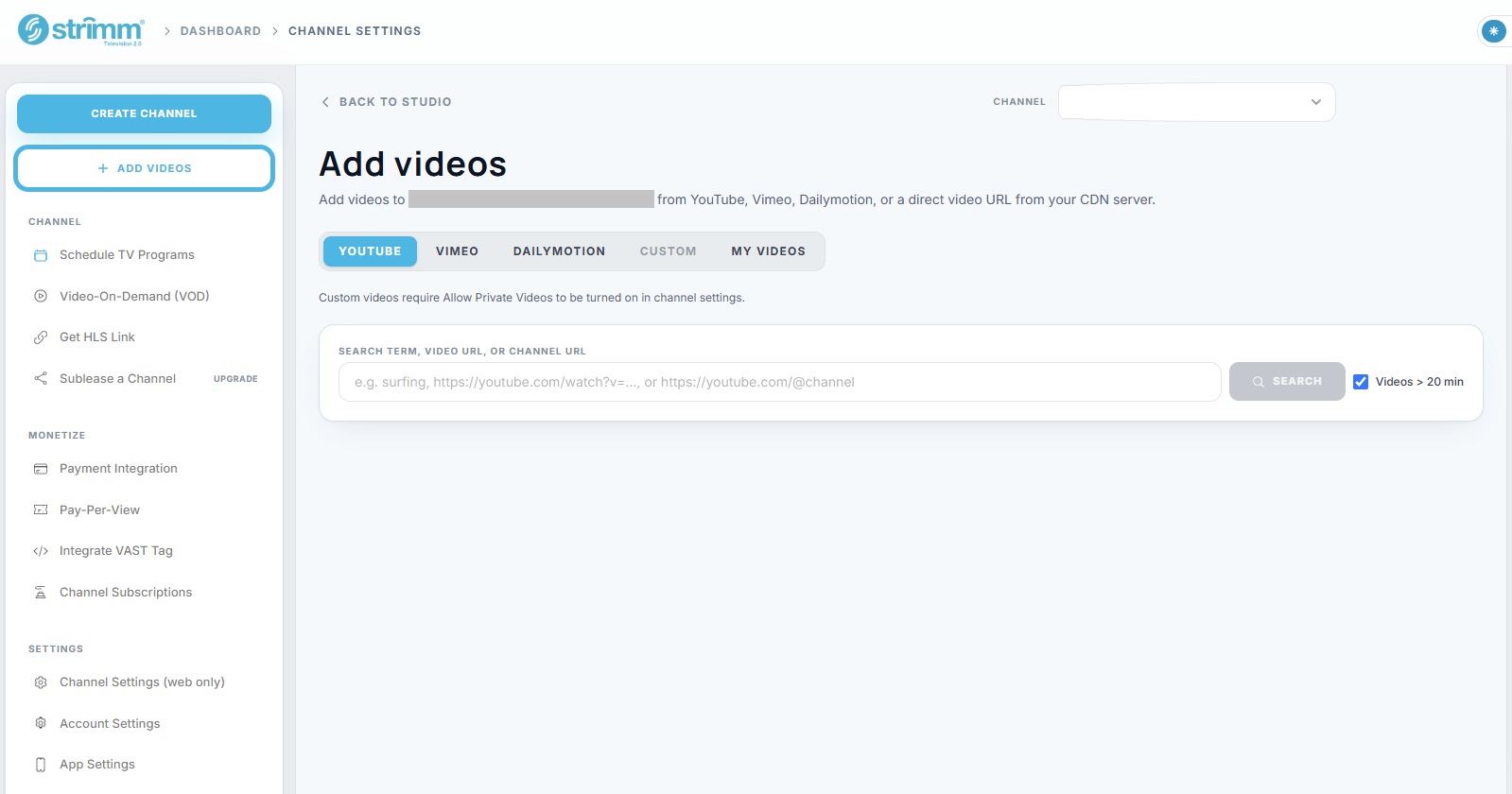
Open your channel: Go to the channel’s Production Studio and select Add Videos.
Choose the provider: Select YouTube, Vimeo, or Custom for an external HLS live feed.
Enable Custom sources if needed: For HLS, first turn on Allow Private Videos in your channel settings. This enables the Custom option; it does not remove restrictions imposed by your streaming provider.
Enter the live link: Paste the viewing or playback URL and follow the prompts:
YouTube:
https://www.youtube.com/watch?v=VIDEO_IDVimeo:
https://vimeo.com/event/EVENT_ID—retain any additional privacy components.HLS:
https://live.example.com/channel/index.m3u8—retain any required query parameters.
Complete the details: For a Custom HLS source, enter a title and add an optional thumbnail and description. Select the appropriate category when prompted.
Schedule the live event: Hover over the live item’s thumbnail and select +. Set the start date/time and end date/time.
Save: Submit the event. No additional placement in your regular program schedule is required.
Important: Use the viewer-facing link—not an encoder’s RTMP address or stream key. Start the broadcast on your external platform before the scheduled live viewing period, and check that your Strimm event times match your intended broadcast times.
Default Live Broadcast
Enable Default Live Broadcast in the channel settings to make the live event the default playback choice instead of regular scheduled programming.
This changes what viewers initially watch; it does not replace your regular program schedule.
Enable it when a live broadcast is available, and disable it when you want regular programming to be the default again.
How viewers access the broadcast
Website player: During the scheduled live-event window, a Live button appears alongside GUIDE, allowing viewers to select the live broadcast.
Supported TV apps: The event appears as a temporary channel using your channel name followed by Live. It disappears from the TV guide when the scheduled event ends.
Test before broadcasting: Confirm playback on your website and each intended app. A scheduled event can appear even if the external source has not started or cannot be played.